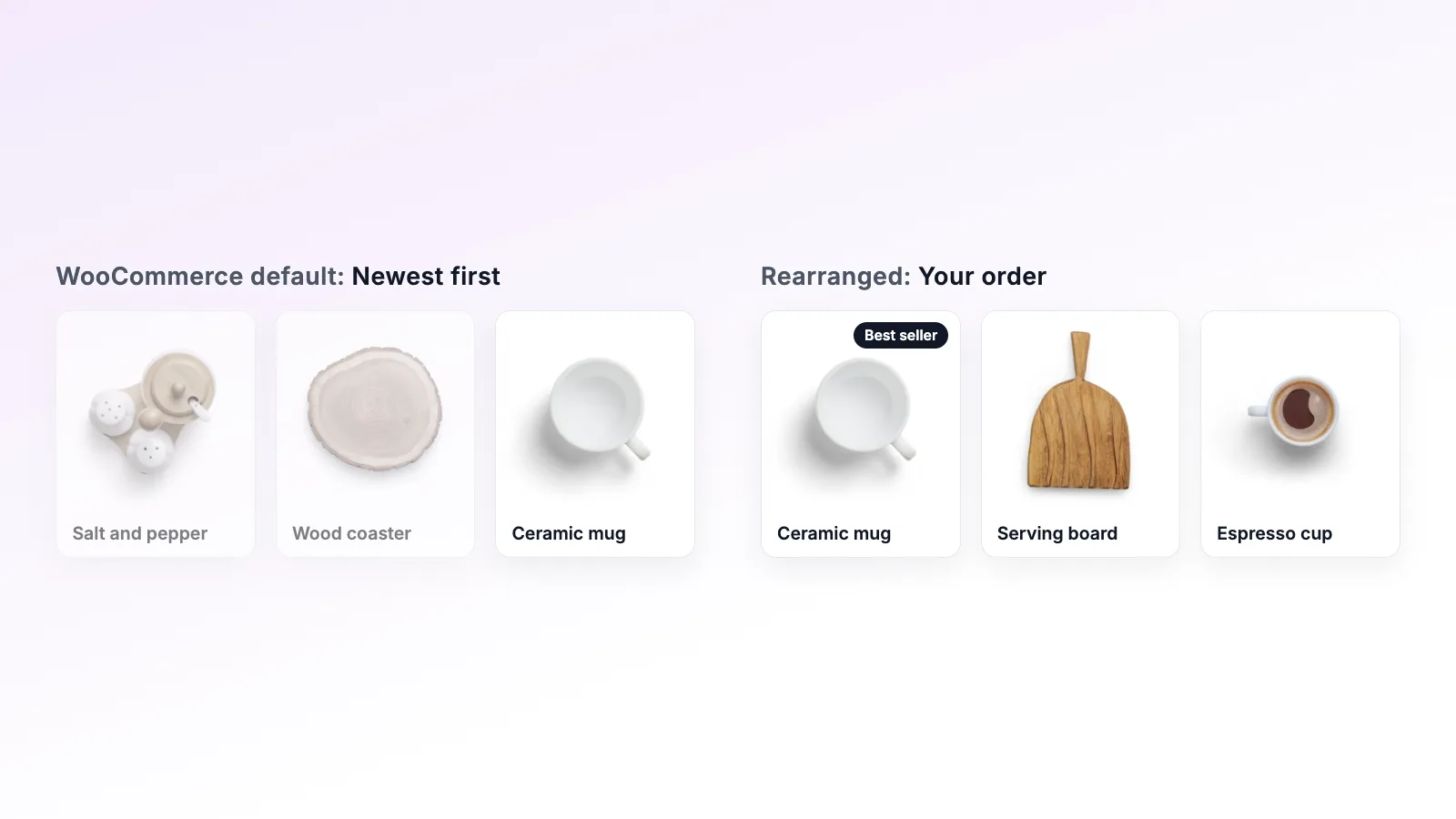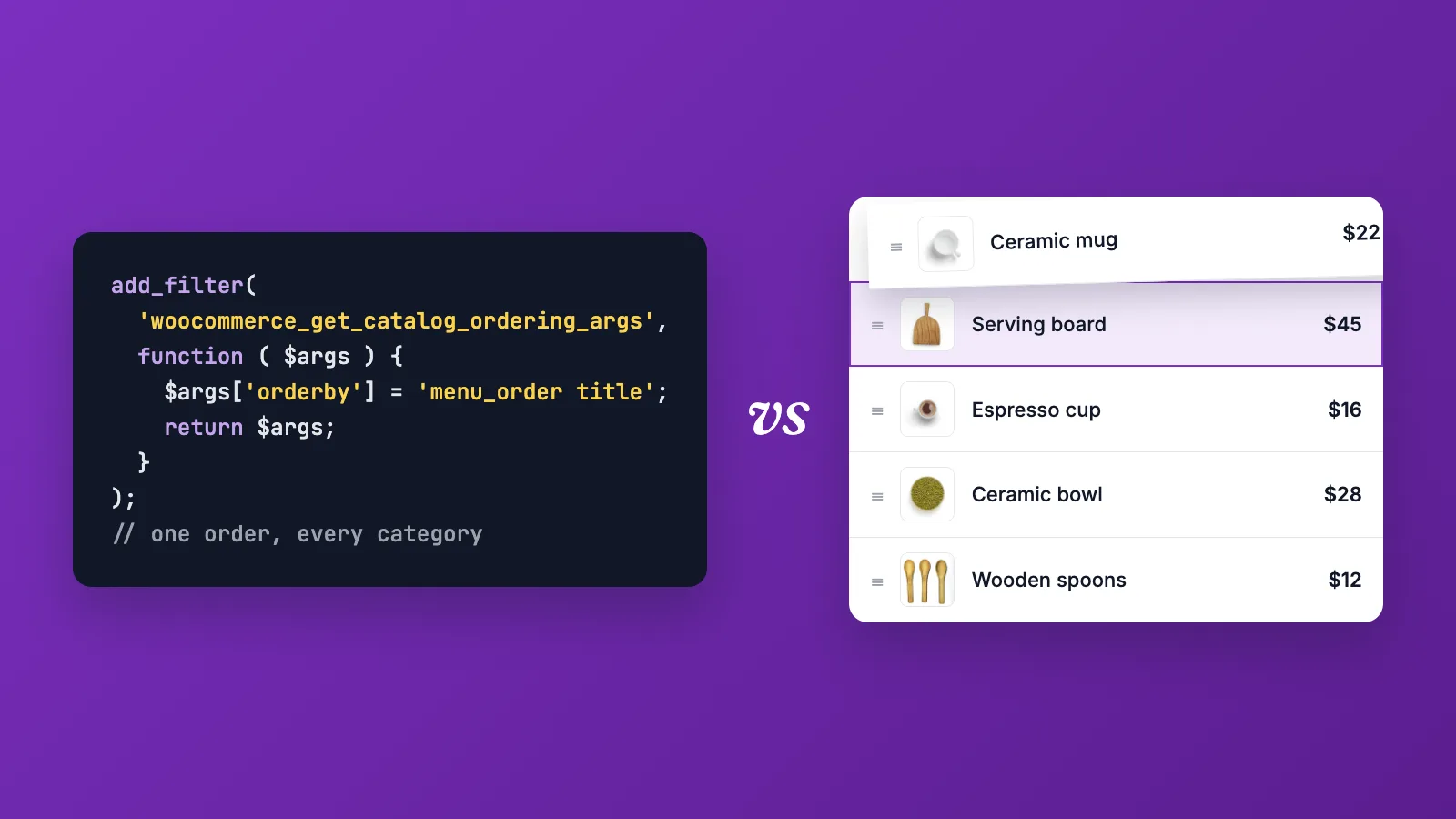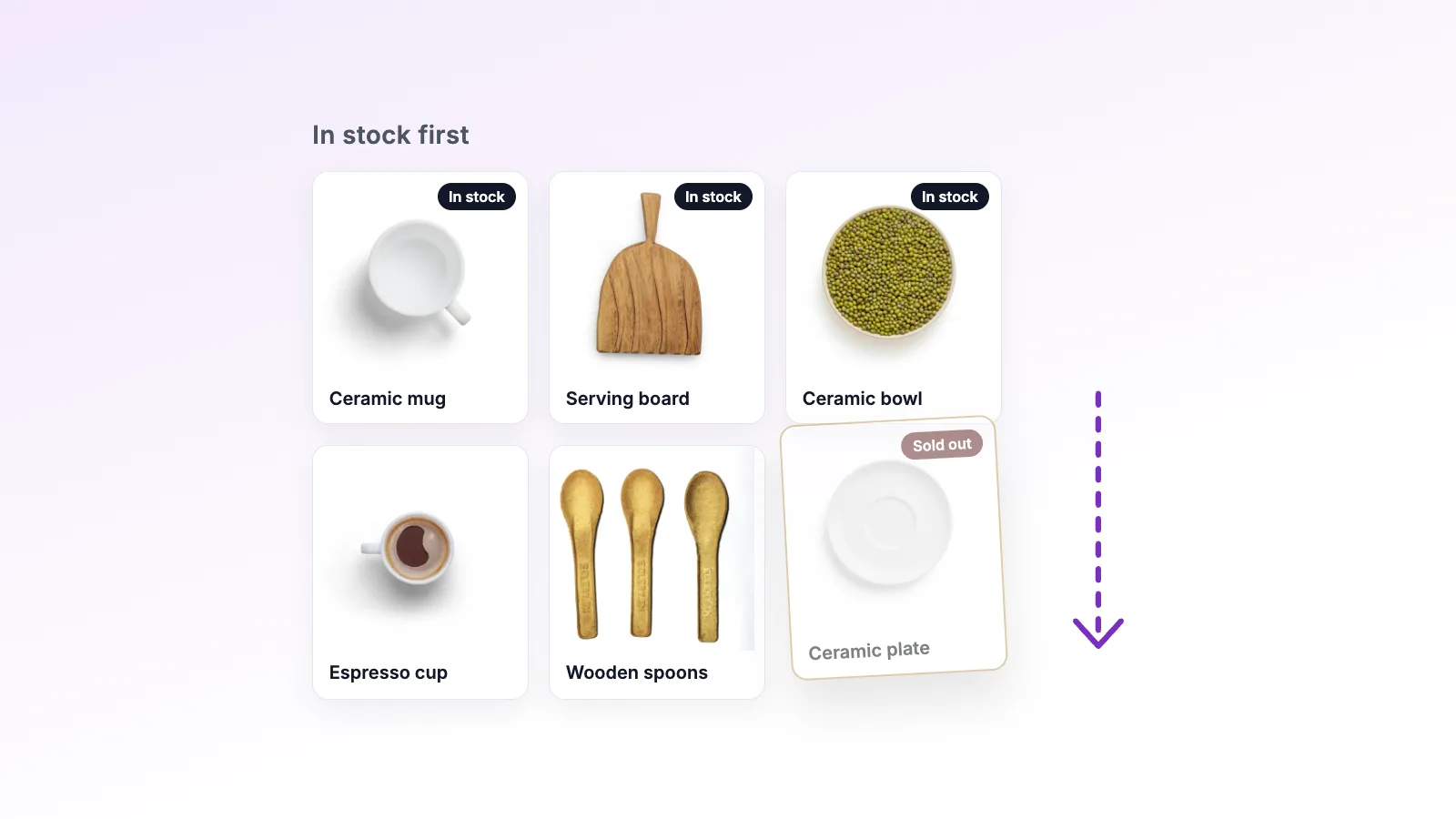
Seasonal collections: rearranging your shop for holidays and sales
A simple routine for featuring holiday, summer or sale products at the top of your WooCommerce shop, and switching back afterwards without redoing your order.
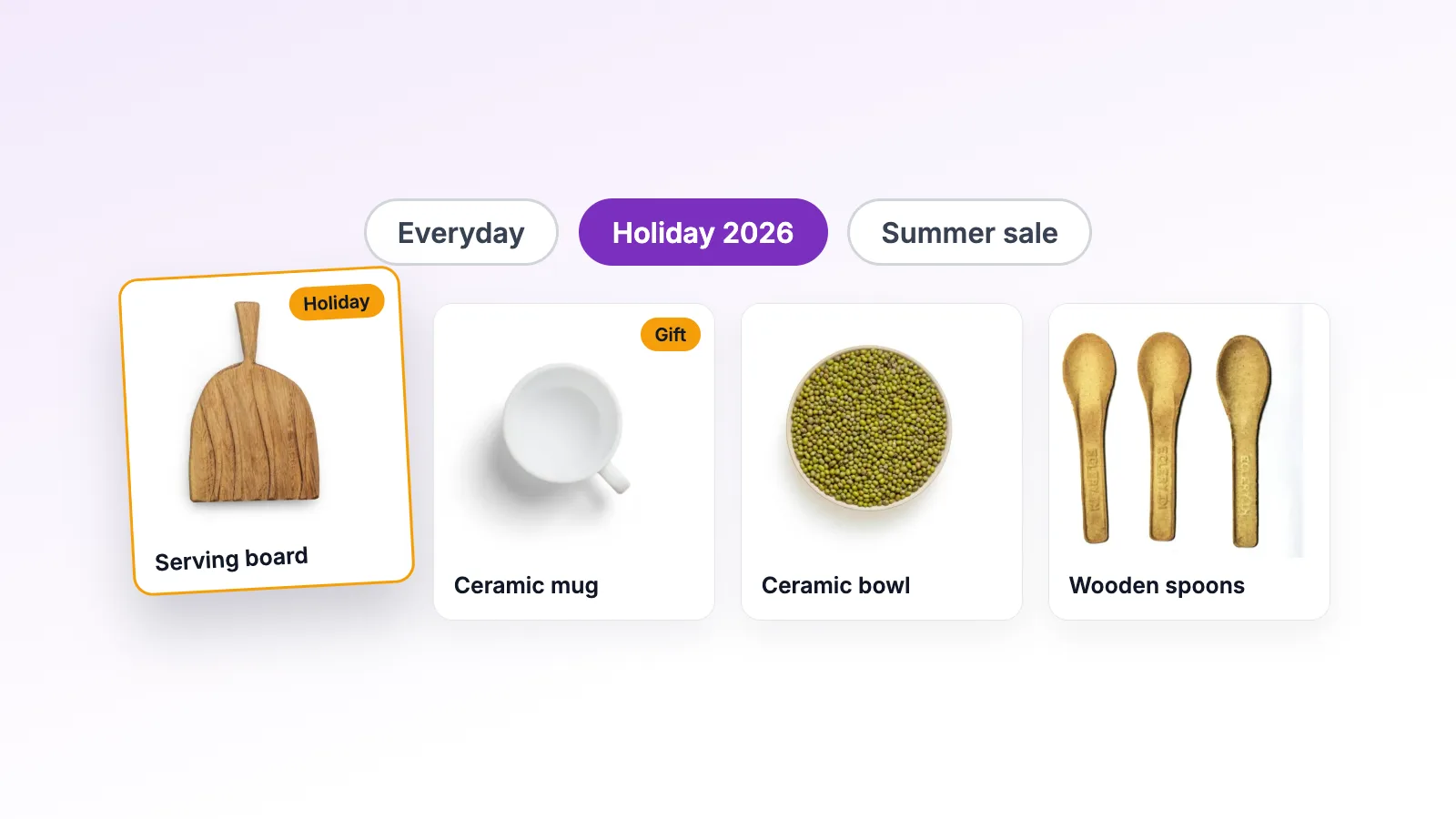
Every store has a few weeks a year when one group of products should own the front of the shop. Gift sets in December. Swimwear in June. Everything with a red price tag during Black Friday week.
Putting those products first is the easy part. The hard part comes when the season ends and you need your normal order back. Most store owners either leave the seasonal products at the top for months or spend an afternoon dragging everything back into place. Neither is great.
This post walks through a routine that avoids both, using Sort Presets and Scheduled Sorting in Rearrange Products Pro.
Why the season deserves the top rows
Shoppers who arrive in December looking for a gift want to see gifts. If the first rows of your shop show your usual best sellers, they have to scroll or search, and some won't. The same is true of a sale: if the discounted products are buried on page three, the sale does less than it could.
A physical shop handles this by changing the window display and the table by the door. Your shop page and your category pages are the online version of those spots.
The routine
Step 1: Save your everyday order before you change anything
Open Rearrange Products and make sure your shop is in the order you normally want. Then save it as a preset. Call it something you will recognise in six months, such as "Everyday".
This one step is what makes the rest painless. Whatever you do for the season, your normal order is safe.
If you arrange individual categories too, check those as well before saving.
Step 2: Build the seasonal order
Now arrange the shop for the season. A few tips:
- Move the collection as a group. Select all the seasonal products and drag them to the top together instead of one by one.
- Lead with your strongest seasonal product. The first product sets the tone for the whole page.
- Don't forget categories. If shoppers usually arrive through a category, such as "Women" or "Home", arrange the seasonal products at the top there too.
- Mix in a best seller or two. A shop that shows only seasonal items can feel narrow to someone who came for something else.
Step 3: Save the seasonal order as its own preset
Save this arrangement as a new preset with a clear name, such as "Holiday 2026" or "Summer sale". Next year, duplicate it and update it instead of starting from scratch.
Step 4: Schedule it
Open the Schedules tab and add a schedule. Pick the "Holiday 2026" preset, then a start date and an end date. Times are in your store's timezone, so midnight means midnight where your shoppers are.
Then choose what happens when it ends. Go back to the regular order brings your everyday order back. Keep this order as the regular order makes the seasonal order stick, which suits a new range that should stay at the front.
While the schedule runs, your regular order isn't changed, and the rearrange screen shows a notice so you know a schedule is live. If you drag products during the sale, you're editing the order that comes back afterwards. To change what shoppers see right now, edit the preset.
Or switch by hand
If you'd rather not schedule it, load the "Everyday" preset when the season is over and the shop goes back to its usual order straight away.
That's the whole routine. Two presets and one schedule, set up once.
Planning the year
Once you have this routine, it helps to put the switches in your calendar. A simple plan for a clothing or gift store might look like this:
| When | Preset |
|---|---|
| Early January | Everyday (or a "January sale" preset) |
| February | Valentine's gifts |
| Late May | Summer range |
| September | Autumn and back to school |
| Late November | Black Friday |
| December | Holiday gifts |
Your own calendar will look different, but the idea is the same: decide ahead of time and prepare the preset early. You can queue several schedules in advance, one after another, so January's sale can start the moment the holiday schedule ends. Schedules for the same part of the shop can't overlap, so two of them never fight over the order.
Landing pages for a collection
Each preset in Rearrange Products Pro has its own shortcode. That means you can build a landing page for the season, for example "Gift guide", and show the products in exactly the order you saved, even after the main shop has gone back to normal.
This is useful for email campaigns and ads. The link goes to a page that always shows the collection the way you planned, not whatever the shop looks like that day.
Let Smart Sort do the first pass
If the seasonal collection is large, you don't have to arrange it by hand. Apply a Smart Sort rule first, such as Best Selling or Latest, and then drag a few products to fine-tune. Save the result as your seasonal preset.
Checking whether it worked
After the season, look at how the featured products did. In WooCommerce → Analytics → Products, set the date range to the weeks the seasonal preset was live and compare it with the same weeks before. If the products you moved to the top sold noticeably more, keep the approach. If not, try a different lead product or fewer seasonal items next time.
Keep a short note with each preset about what you changed and how it went. Next year, that note is more useful than trying to remember.
Try it
Sort Presets and Scheduled Sorting are part of Rearrange Products Pro, which comes with a 3-day free trial. If you only need drag and drop for now, the free version covers the shop and every category. See the seasonal collections use case for a shorter summary of this routine.