How to push out-of-stock products to the bottom in WooCommerce
Sold-out products in the top rows cost you sales. Compare hiding them with moving them down, and show out-of-stock products last for free with Stock-Aware Auto Push.
Your best sellers are at the top of the shop because they sell. Then one sells out, and it keeps sitting in the top row, showing "Out of stock" to everyone who arrives. Shoppers click it, find they can't buy it, and some of them leave.
There are two ways to deal with this in WooCommerce: hide sold-out products or move them down. This guide compares the two and shows how to set up the second.
Option 1: Hide out-of-stock products
WooCommerce has a built-in setting for this. Go to WooCommerce → Settings → Products → Inventory and tick Hide out of stock items from the catalog.
Sold-out products disappear from the shop, category pages and search results. It's quick, but it has trade-offs:
- Shoppers can't see what is coming back. If a popular product is out of stock for a week, people who would happily wait never learn it exists.
- Category pages can look thin. A category with half its products sold out suddenly looks empty.
- Links from outside still land on the product. Product pages remain reachable from search engines, emails and social posts, but they no longer appear in the catalog, which can confuse people who navigate back to the shop.
Hiding works best for one-off items that will never be restocked.
Option 2: Move them to the bottom
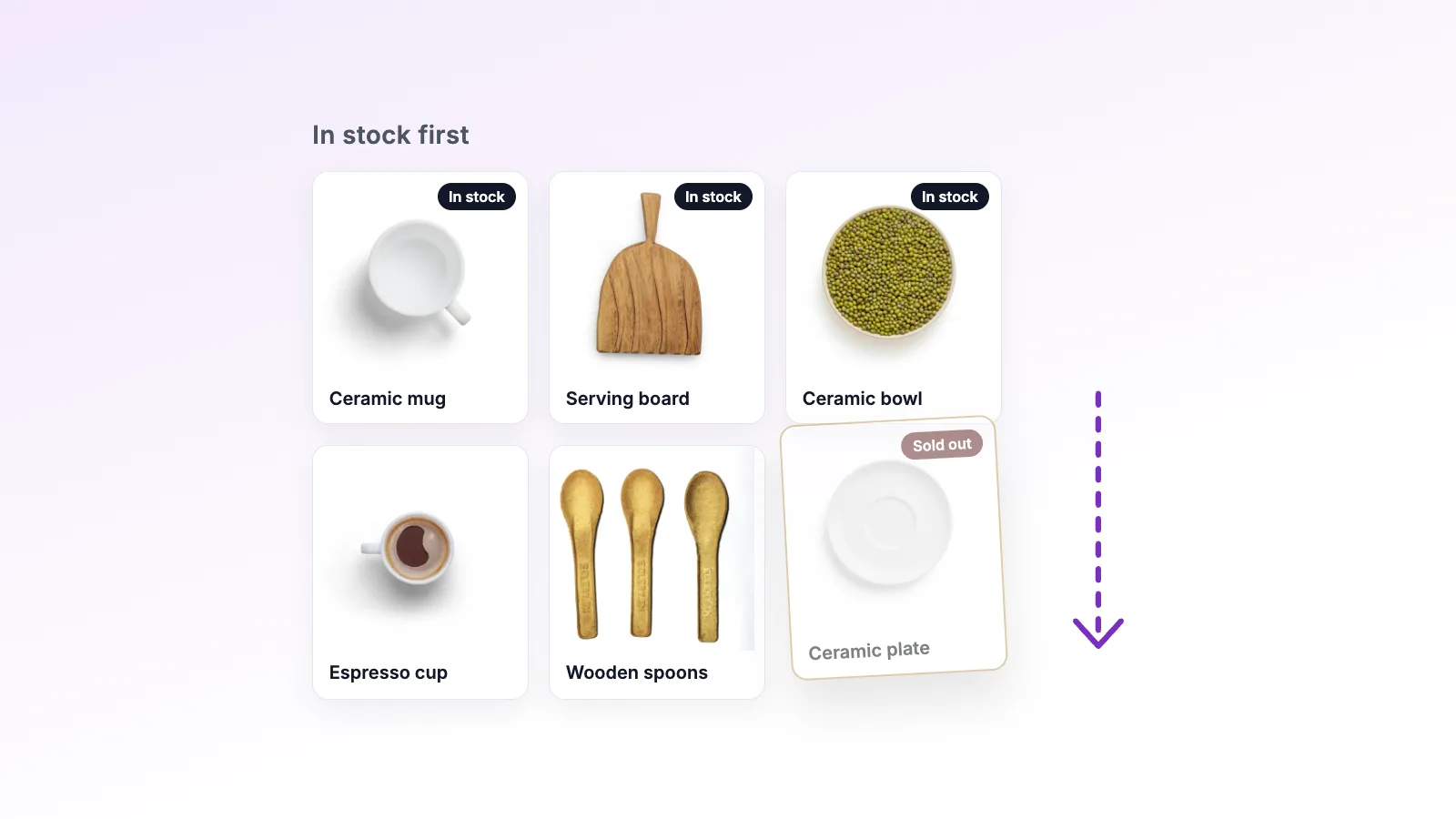
The alternative is to keep sold-out products visible but move them below everything that is in stock. Shoppers see what they can buy first, and sold-out products are still there for people who want to check back later.
For most stores that restock regularly, this is the better default.
Setting it up with Stock-Aware Auto Push
Rearrange Products has a free setting for this called Stock-Aware Auto Push. It shows out-of-stock products after in-stock ones on your store, without changing the order you saved.
1. Turn it on
Open Rearrange Products → Settings, find Stock-Aware Auto Push and tick Show out-of-stock products last. Save the settings.
2. Decide about backorders
If you also tick Also show backorders last, products on backorder move down with the sold-out ones. Leave it off if backorders sell well for you and you want them to keep their spot.
3. Adjust single categories
On Sort by Categories, each category has its own Out-of-stock products option. It can follow the main setting, or turn the push on or off for that category alone. That's handy for a clearance category where sold-out items should simply stay where they are.
4. Let restocks take care of themselves
The push happens when the shop page loads, so your saved order is never rewritten. In the admin list, sold-out products keep their place and get a Shown last label. When one comes back in stock, it returns to its old spot on the storefront straight away. There's nothing to re-sort after a delivery.
Two things to know. If WooCommerce is set to hide out-of-stock items, only backorders have anything to move. And if your site uses page caching, shop pages can show the old order until the cache clears.
Finding out which products are sold out
Before you change anything, it helps to know how big the problem is. In Products → All Products, use the Filter by stock status dropdown and choose Out of stock. WooCommerce lists every sold-out product, so you can see at a glance whether it is a handful of items or half a category.
It's also worth checking how sold-out products look on your theme. Some themes show a clear "Out of stock" badge on the product image, others only mention it on the product page. If your theme shows nothing in the grid, moving sold-out products down matters even more, because shoppers have no way to tell them apart until they click.
When you want a fixed order instead
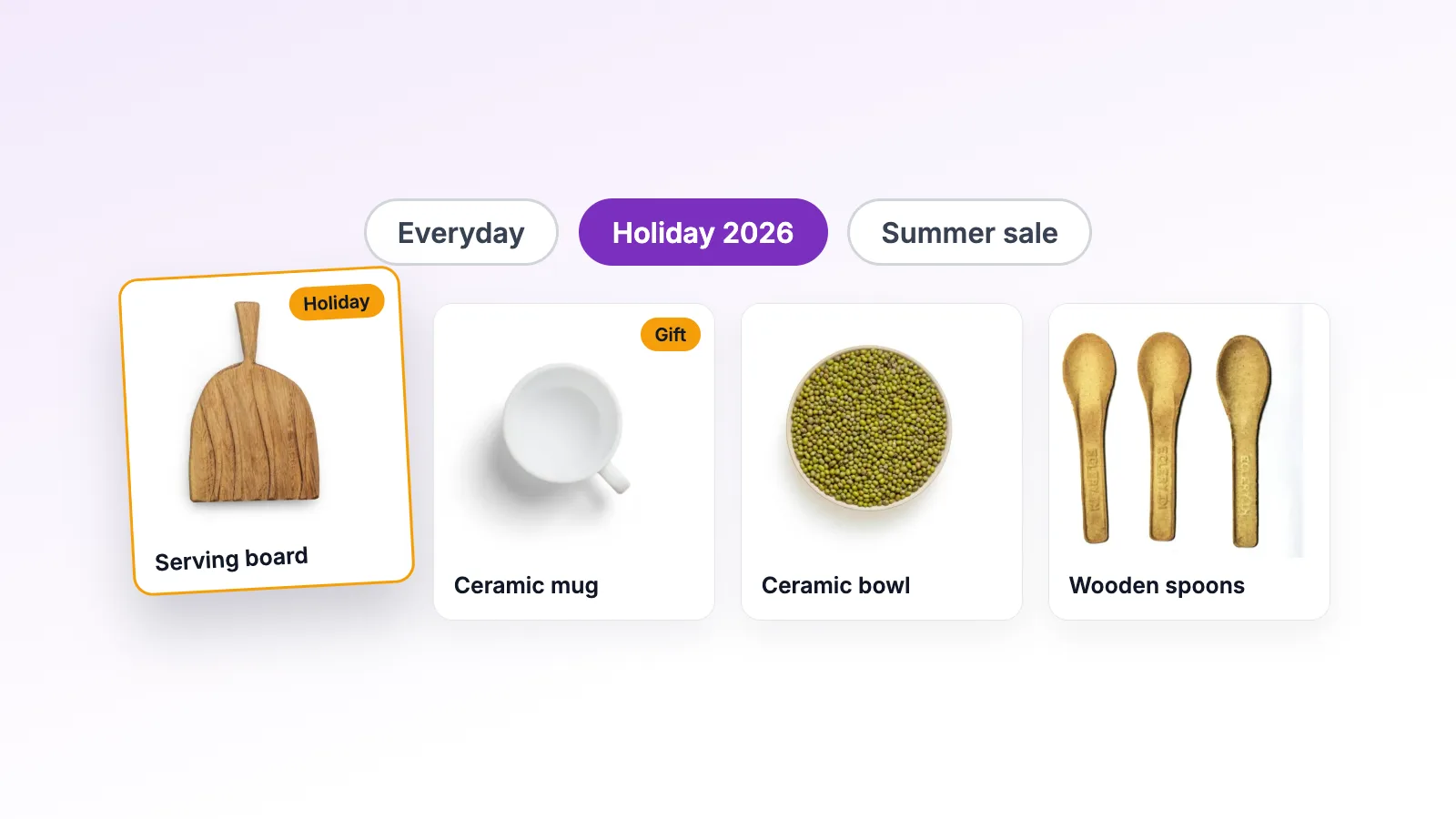
Stock-Aware Auto Push sits on top of your arrangement and follows stock as it changes. Sometimes you want the opposite: a one-off reorder that is written into the saved order itself. Rearrange Products Pro has a Smart Sort rule called In Stock First for that. Apply it to the shop or a category, drag a few products to fine-tune, and save the result as a preset if you want to come back to it. Presets are covered in the seasonal collections guide.
A quick note on snippets
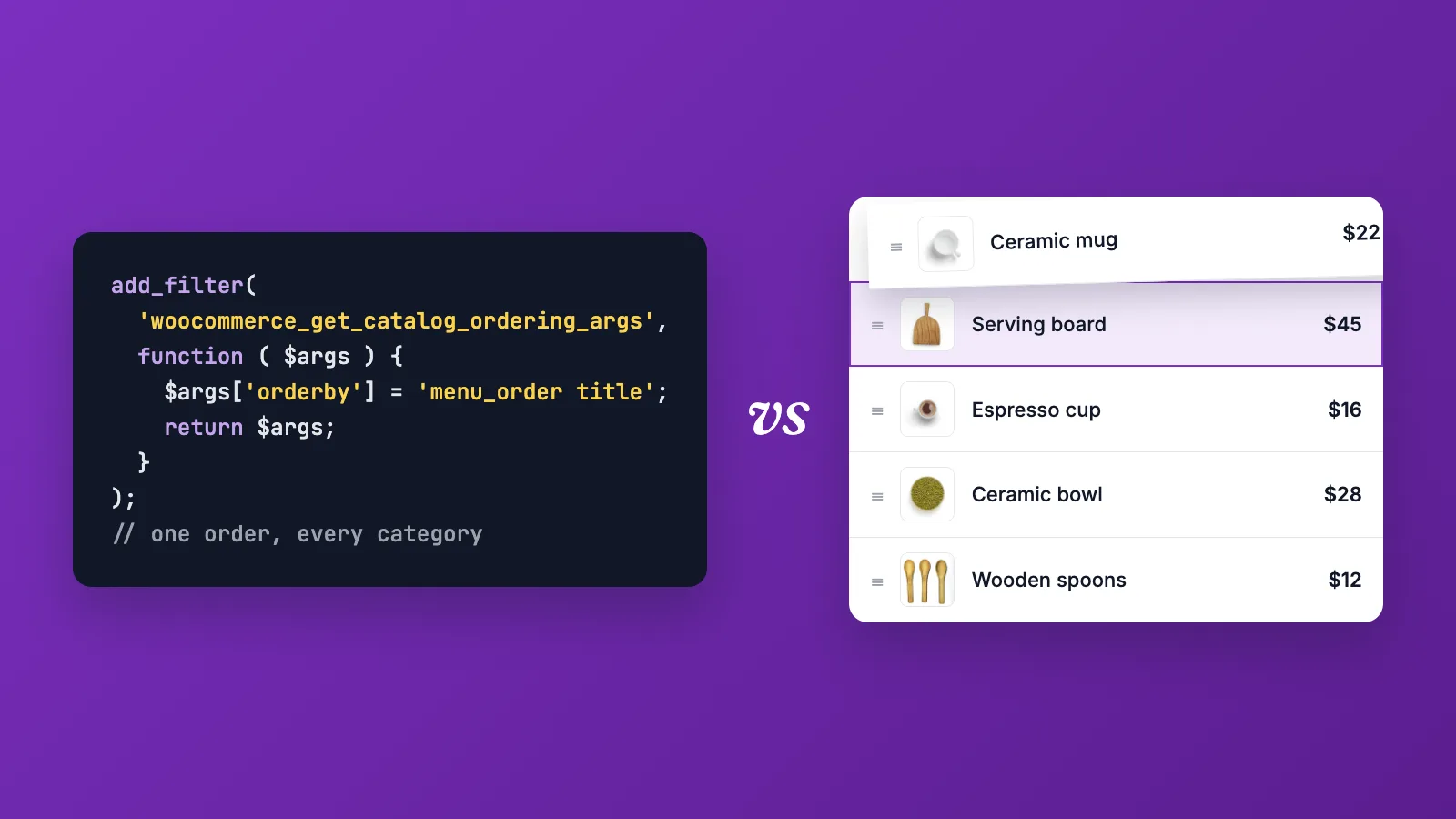
You can also do this with code, by changing the shop query to sort on stock status before menu order. It works, but the same caveats apply as with any sorting snippet: it lives in your theme or a snippets plugin, it may not affect page builder grids, and someone has to maintain it. The snippet vs plugin post goes through those trade-offs.
Which should you use?
- Products that will never come back: hide them with the WooCommerce setting, or set them to draft.
- Products that will be restocked: keep them visible and turn on Stock-Aware Auto Push.
- A mix of both: use both. The two settings work together.
Stock-Aware Auto Push is part of the free version. See the in-stock first use case for a short summary.