How to change the product order in WooCommerce
WooCommerce's sorting options, where its built-in custom order falls short, and how to set your own order for the shop and each category with drag and drop.
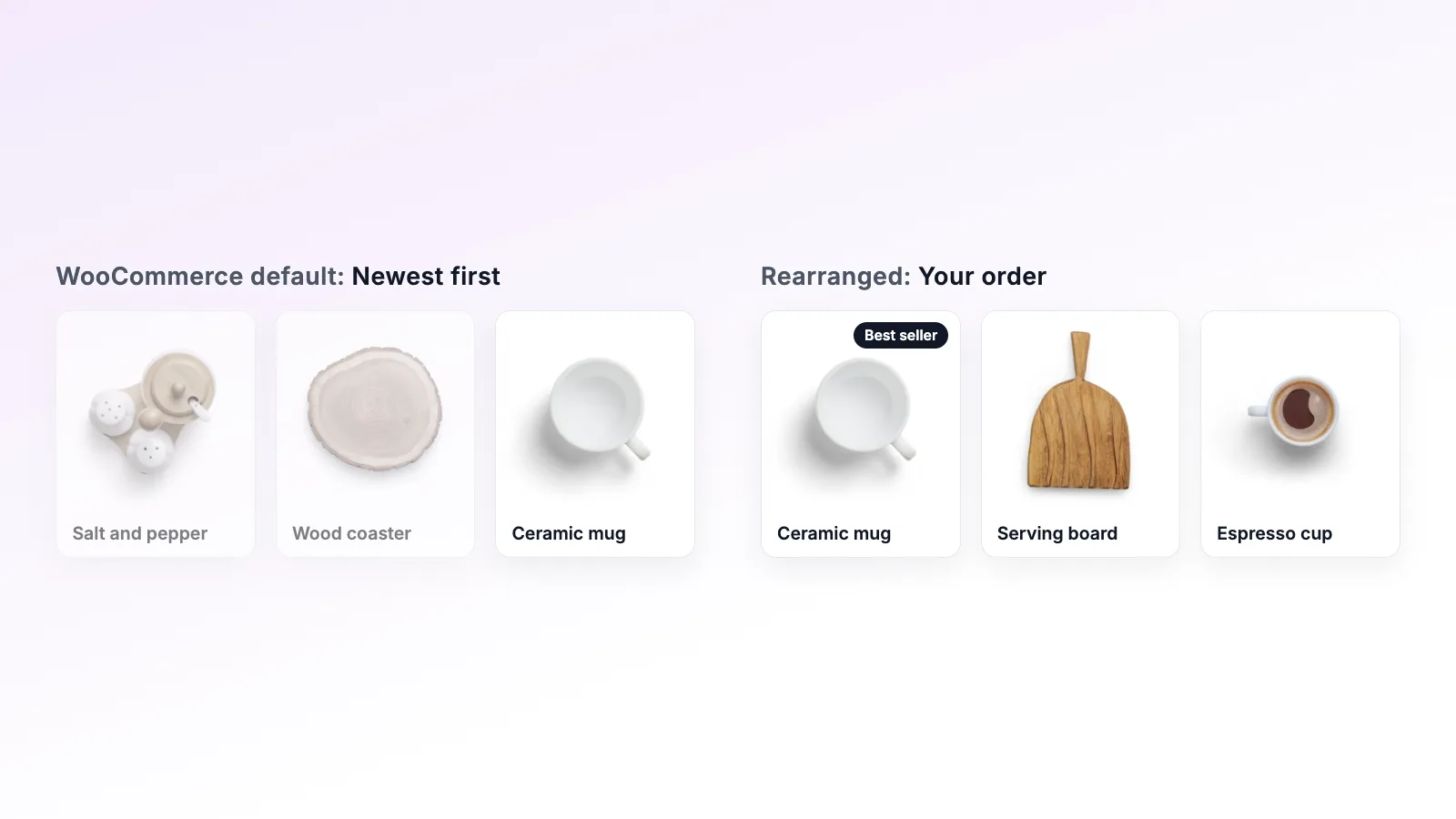
Out of the box, WooCommerce decides the order of your products for you. For a small shop with a dozen products that is usually fine. Once you have a few hundred, the order of the first two rows starts to matter, and the defaults rarely put the right products there.
This guide covers what WooCommerce gives you, where it stops, and how to set any order you like for the main shop and for each category.
The sorting options WooCommerce already has
Go to Appearance → Customize → WooCommerce → Product Catalog and look at Default product sorting. You can pick one of these:
- Default sorting (custom ordering + name)
- Popularity (sales)
- Average rating
- Sort by most recent
- Sort by price (ascending or descending)
These apply to the whole catalog. Popularity and most recent are reasonable starting points, but you can't say "these three products first, then the rest by sales", and you can't give the gift category a different order from the clearance category.
WooCommerce's own custom order
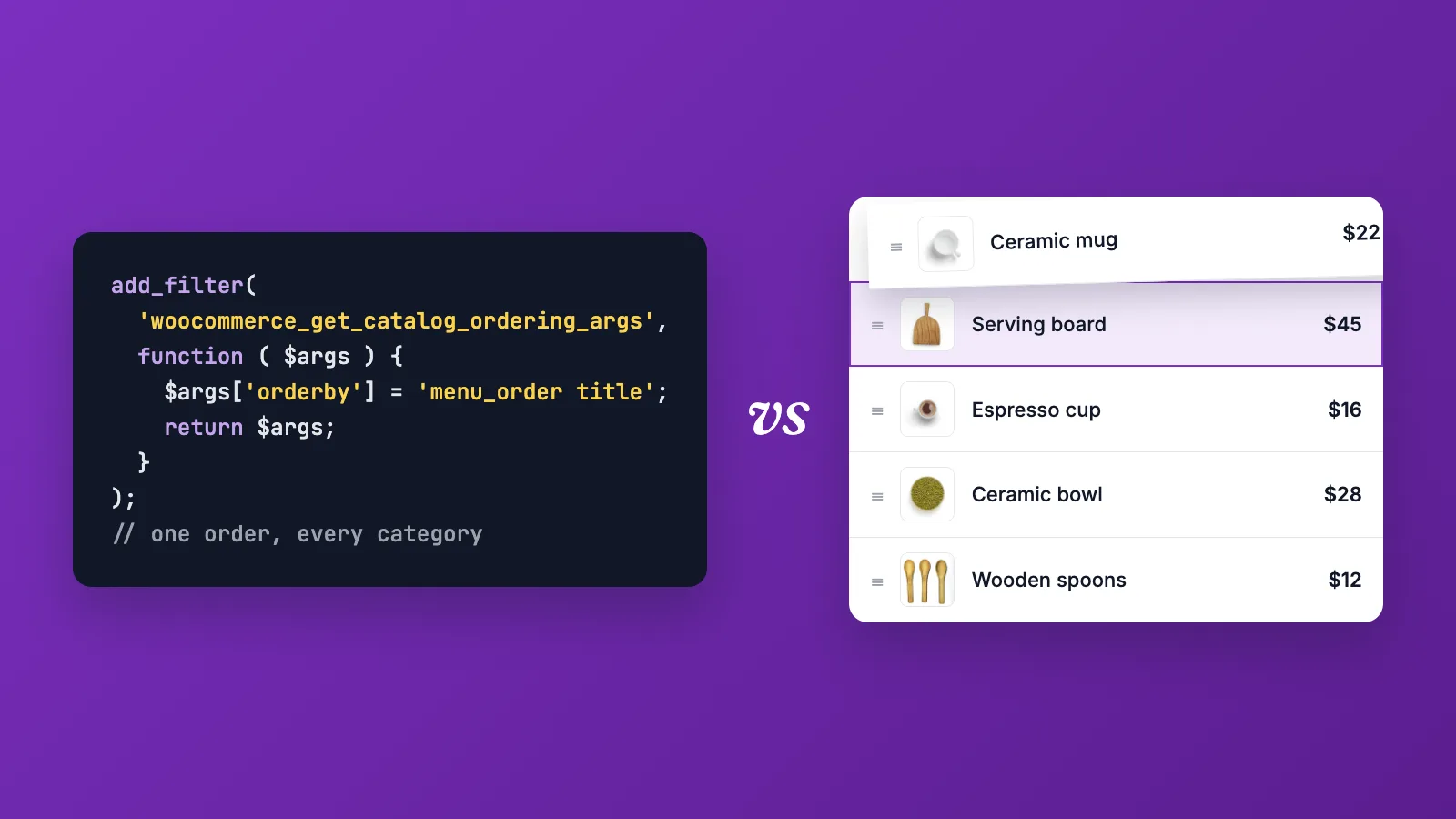
"Default sorting (custom ordering + name)" uses a number called the menu order. Every product has one, and you can set it in two places:
- On the product edit screen, under Product data → Advanced → Menu order. Lower numbers come first.
- In Products → All Products, click Sorting above the list and drag products up and down.
This works for small catalogs. It gets painful quickly as the catalog grows:
- The menu order is one number per product, so it is the same everywhere. A product can't be first in one category and tenth in another.
- Dragging in the products list happens one page at a time, which is slow with hundreds of products.
- Typing numbers into each product means opening every product you want to move.
Setting your own order with Rearrange Products
Rearrange Products is a free plugin that gives you a dedicated sorting screen for the shop and for every category. Here is the whole process.
1. Install the plugin
In WordPress, go to Plugins → Add New, search for "Rearrange Products for WooCommerce", install it and activate it. A new Rearrange Products item appears in the admin menu.
2. Arrange the main shop page
Open Rearrange Products. You will see your products as a list with thumbnails. Drag a product to the position you want. To move a group, select several products and drag them together, which is handy when a whole collection needs to go to the top.
The order is saved as you go. Open your shop page in another tab and refresh to check it.
3. Give each category its own order
Switch to the Sort by Categories tab and pick a category. Arrange it the same way. Each category and sub-category keeps its own order, so the gifts category can lead with gift sets while the main shop leads with your best sellers.
4. Decide where the order applies
By default, the order applies to the main shop and category pages. If you use WooCommerce shortcodes such as [product_category category="my-category-slug"] on other pages, go to Rearrange Products → Settings and enable All Loops. Your order then applies to shortcodes and custom product queries too.
5. Check your page builder
Page builders often have their own product widget with its own query. If a product grid built with a page builder ignores your order, open the widget settings and look for a sort option called "custom order" or "menu order". Standard WooCommerce shop and category pages need no extra setup.
What to put first
Once you can control the order, the next question is what the order should be. A few patterns that work for most stores:
- Best sellers at the top of the main shop. New visitors decide quickly, and products that already sell are the safest bet.
- New arrivals at the top of a dedicated category. Returning visitors look for what changed.
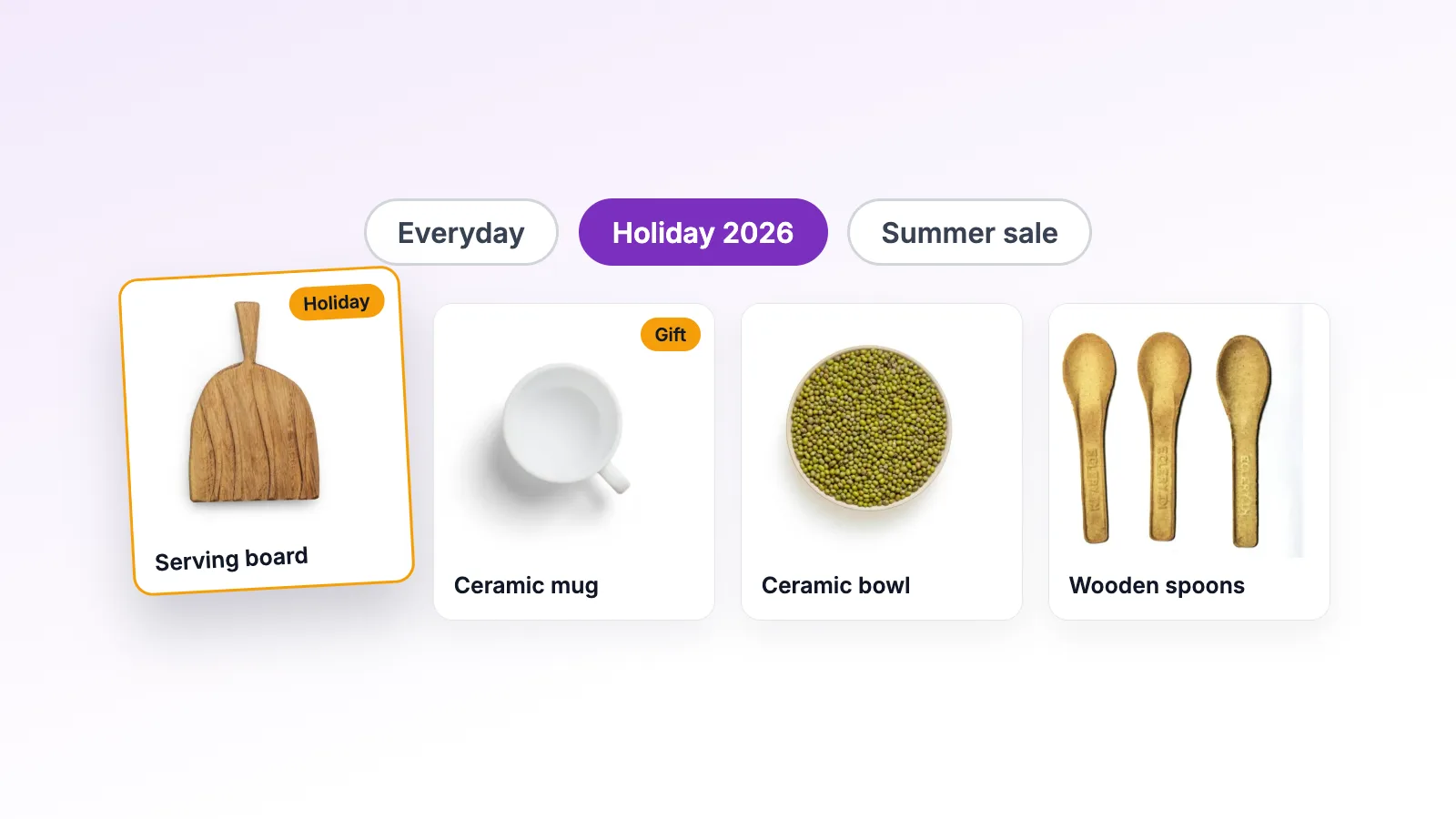
- Seasonal products first for as long as the season lasts. Then switch back. There's a separate guide on seasonal collections.
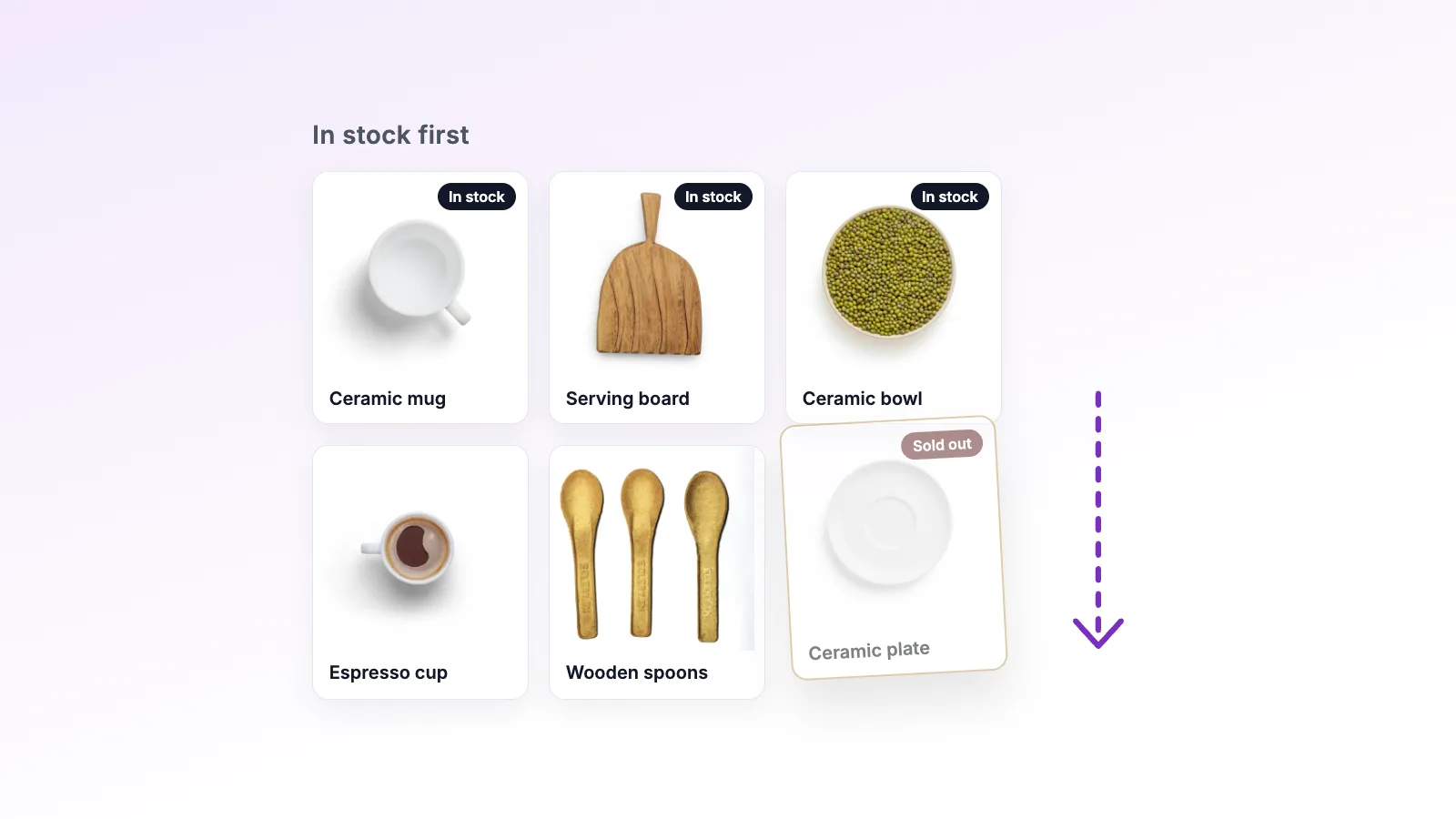
- Sold-out products further down. They take up the best spots without selling anything. The free Stock-Aware Auto Push setting moves them down for you. See pushing out-of-stock products to the bottom.
Doing it faster with Smart Sort
Dragging is ideal for putting a handful of products in exactly the right place. For a full catalog, Rearrange Products Pro adds Smart Sort, which orders a whole shop or category in one click by best selling, most rated, name, stock, price, latest, oldest or random. You can still drag individual products afterwards to adjust the result.
Pro also lets you save an arrangement as a preset and load it again later, schedule a preset for a sale so it switches on and off by date, and export or import sort orders between stores.
Common questions
Will switching themes reset my order? No. The order is stored in its own database table, separate from your theme.
What happens if I deactivate the plugin? Your custom order stops applying while the plugin is inactive and comes back when you reactivate it. Deleting the plugin removes the saved order permanently, so export it first if you are using Pro.
Does it work with WPML? Yes. The order you set in your main language is mirrored to the translated products.
If you get stuck, the video user guide walks through each feature, and the support page lists the ways to reach us.